
Getting started
Install neomod, use your osu!stable library, log in and find your way around.
Install
Get the build for your system from the downloads page. There are builds for Windows, Linux and macOS (Apple Silicon). Unzip it anywhere and run it: there is no installer.
To try neomod without installing anything, play in your browser.
macOS
The macOS build isn't signed by Apple yet, so macOS blocks it the first time you open it. To allow it:
- Unzip the download, and move
neomod.appto your Applications folder. - Open it. When macOS says it can't verify it, click "Done".
- Open System Settings > Privacy & Security, and scroll down to Security.
- Next to the message about neomod, click "Open Anyway", then confirm with your password.
You only need to do this once. You can also run this in the Terminal instead:
xattr -dr com.apple.quarantine /Applications/neomod.appYour osu!stable library
neomod plays the maps, skins and scores of your osu!stable install, without copying them.
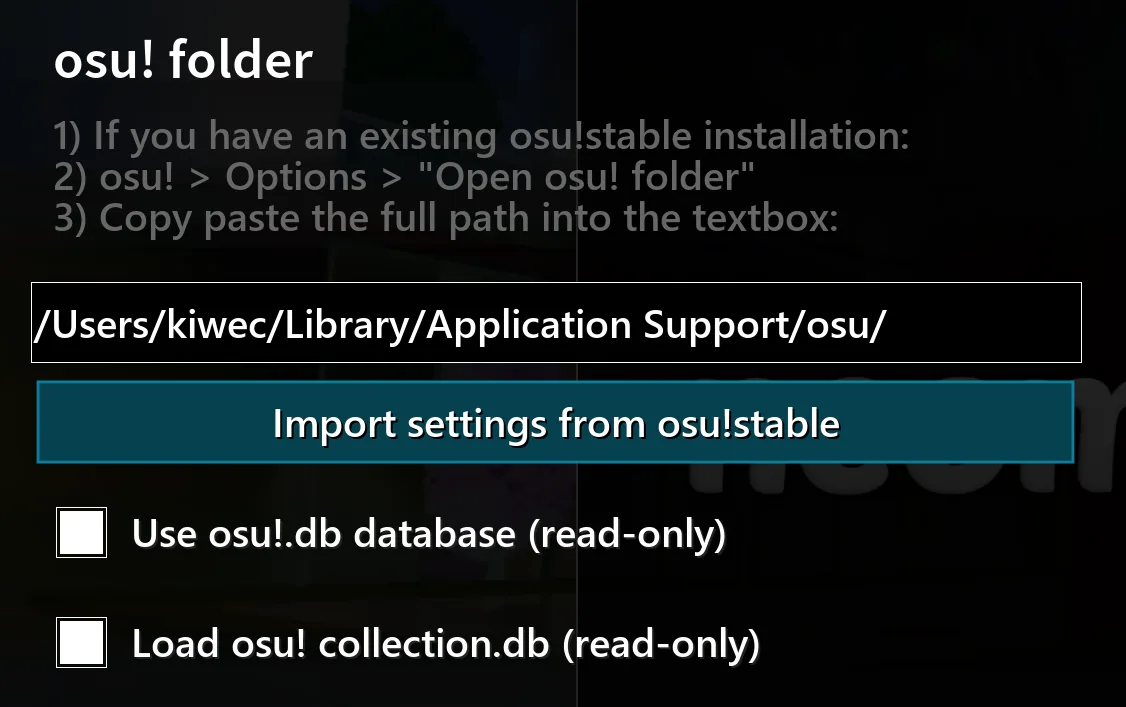
On Windows, neomod finds your osu! install by itself. Otherwise, pick it in Options > General > osu! folder.
Log in
Open the options, and click "Log in" under Online server. Your browser opens, and you pick an osu!, Discord or Steam account.
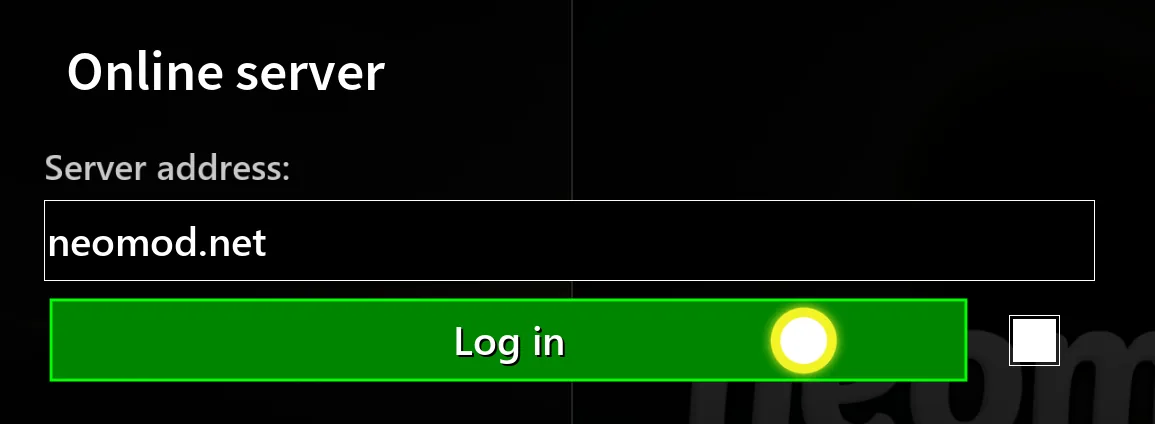
Logging in submits your scores, and gives you multiplayer, spectating and chat. You can link your other accounts from your settings.
The console
Every setting in neomod is a console variable. Press Shift+F1 to open the console, then type a variable name followed by its new value. F1 closes it.
cursor_trail_length 0.5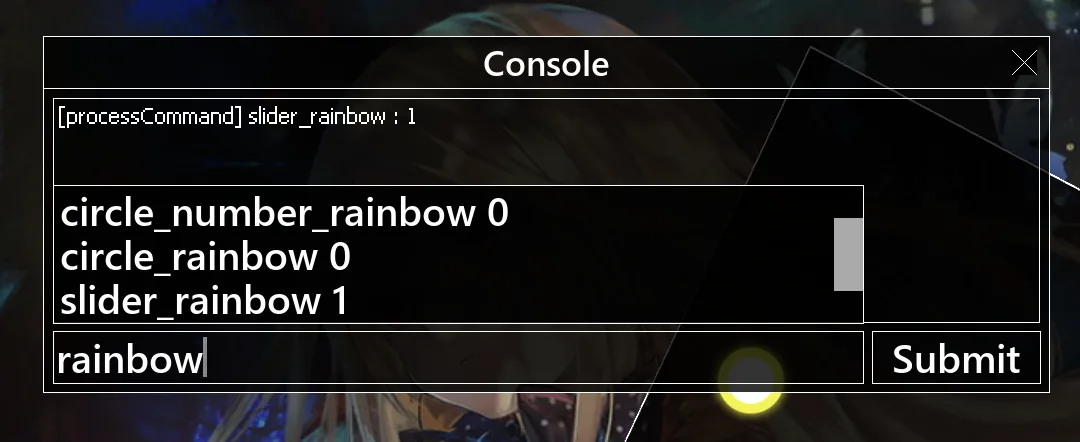
Search all of them on the Console variables page.
Handy shortcuts
- F2 while paused or after failing: rewatch the last 15 seconds
- F12: take a screenshot
- Shift+F12: upload a screenshot and copy its link
- Shift+F1: open the console